

Ready to transform your IT experience? Reach out to our experts to discuss how our tailored solutions can meet your business needs and keep your technology running smoothly.
How to Tell If Your Computer Has Been Hacked
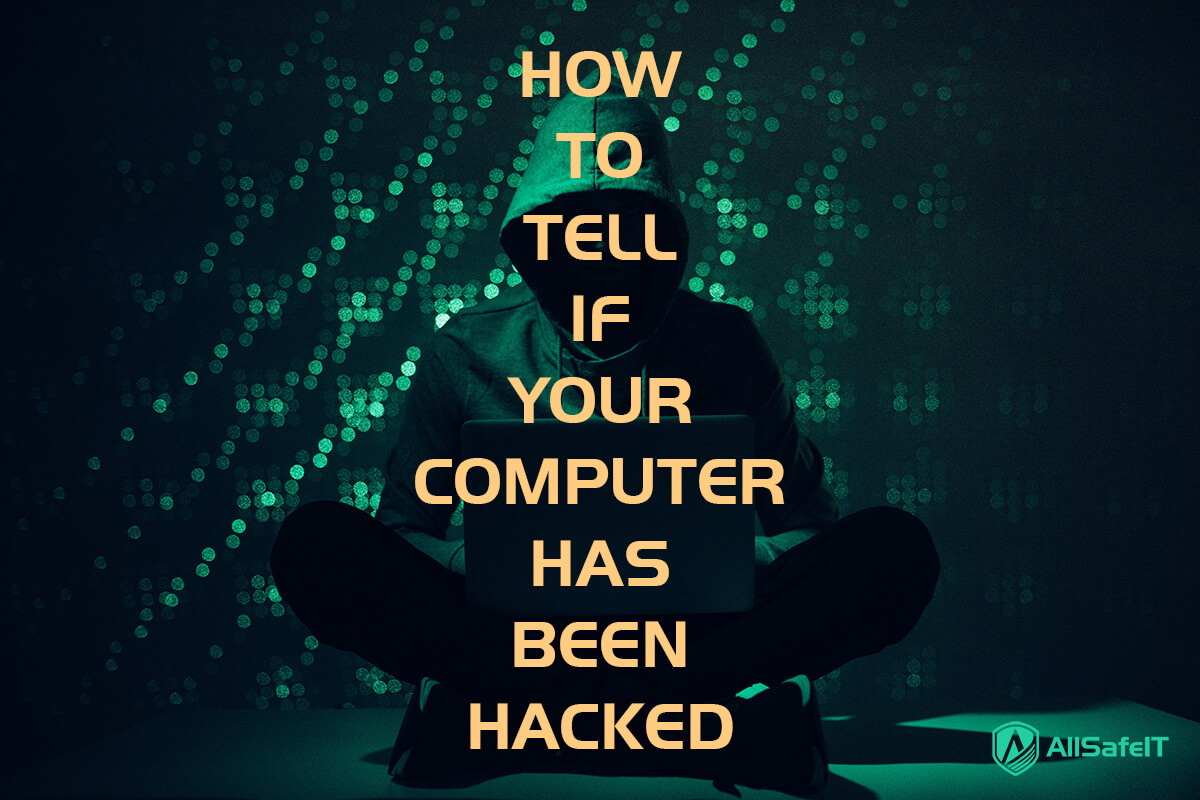
The fastest way to spot a hacked computer is to look for three things: unfamiliar programs running in Task Manager or Activity Monitor, password reset emails you never requested, and a sudden drop in system performance with no obvious cause. If any of those are happening right now, your machine may already be compromised.
The scale of this problem is staggering. In 2024, the FBI’s Internet Crime Complaint Center (IC3) received 859,532 complaints and recorded $16.6 billion in total losses from cybercrime. That’s a 33% increase over the prior year, and phishing was the single most reported attack type with over 193,000 complaints. Most of these attacks start quietly. Hackers want to stay hidden for as long as possible so they can steal data, harvest credentials, or use your system’s resources without your knowledge.
Most hacking starts with malware, which is short for malicious software. Malware is any program designed to damage, disrupt, or gain unauthorized access to a computer system. The term covers several specific threat types: viruses that attach to files and spread when those files are shared, trojans that disguise themselves as legitimate software, ransomware that encrypts your files and demands payment, spyware that monitors your activity, keyloggers that record your keystrokes, and worms that replicate across networks without any action from you.
This guide covers the 10 most reliable warning signs, the exact diagnostic steps you can run on Windows and Mac to verify whether you’ve been compromised, what to do if you have, and how to prevent it from happening again.
10 Signs Your Computer Has Been Hacked
1. Your Computer Slows Down for No Clear Reason
A sudden drop in performance, where websites take longer to load, files open slowly, or your fan runs loud during simple tasks, is one of the most common early signs of compromise. Malware running in the background consumes CPU, memory, and bandwidth that your computer needs for normal operations.
Cryptojacking is a specific type of attack worth knowing about. In a cryptojacking scenario, an attacker installs mining software on your computer that uses your processing power to generate cryptocurrency for them. Your electricity bill goes up, your computer runs hot and sluggish, and you get nothing out of it. Unlike ransomware, which announces itself, cryptojacking is designed to run silently for as long as possible.
Quick check: Open Task Manager on Windows (Ctrl+Shift+Esc) or Activity Monitor on Mac (Applications > Utilities) and sort by CPU usage. If a process you don’t recognize is consuming a large percentage of your CPU while you’re not doing anything intensive, investigate it further. Search the process name online before ending it. Some legitimate Windows processes have unusual names.
2. Programs You Never Installed Show Up
Finding new desktop shortcuts, unfamiliar applications in your Start menu, or software in your installed programs list that you don’t recognize is a strong indicator. Hackers install additional tools on compromised machines for several reasons. Remote access trojans (RATs) give them a way back in even after a reboot. Keyloggers record every keystroke you type, including passwords and credit card numbers. Spyware quietly copies and uploads your personal files.
Check your installed programs list (Settings > Apps > Installed apps on Windows 11, or Applications folder on Mac). Also check your Startup tab in Task Manager. Programs that launch automatically when your computer boots are worth scrutinizing, especially any you don’t remember adding.
3. Your Browser Settings Changed Without You
If your browser homepage suddenly redirects to an unfamiliar search engine, or you notice new toolbars and extensions that you didn’t install, your browser has likely been hijacked. Adware and browser hijackers modify these settings to serve you ads, redirect your searches through affiliate links, or push you toward phishing pages that harvest login credentials.
This often happens after installing free software that bundles unwanted extras during the installation process. Check your browser’s extension list (chrome://extensions in Chrome, about:addons in Firefox) and remove anything you don’t recognize. Then reset your browser’s homepage and default search engine in Settings. If the changes keep coming back after you fix them, deeper malware is likely at work.
4. You’re Locked Out of Your Own Accounts
When your usual login credentials stop working and you’re suddenly locked out of email, social media, or banking accounts, that’s a serious warning sign. You might also receive password reset confirmation emails you never initiated, or notice a new recovery phone number or email address attached to one of your accounts.
According to the 2025 Verizon Data Breach Investigations Report, stolen credentials were the initial access method in 22% of all breaches. In many cases, attackers don’t need to hack your computer at all. They buy leaked username-password combinations from data breaches and try those same credentials across hundreds of other services. This technique, called credential stuffing, works because people reuse passwords. The Verizon research found that credential stuffing accounted for 19% of all authentication attempts on single sign-on platforms they analyzed.
If you’re locked out, go to the service’s account recovery page from a different device immediately and follow their verification steps.
5. Your Webcam Light Turns On by Itself
When your webcam indicator light activates and you haven’t opened any video app, treat it seriously. Remote access trojans can activate your camera and microphone to watch and listen without your knowledge. On most laptops, the indicator light is hardwired to turn on whenever the camera receives power, making it difficult (though not impossible) for software to bypass.
On Windows, go to Settings > Privacy & Security > Camera to see which apps have camera access. On Mac, check System Settings > Privacy & Security > Camera. Look for any application you don’t recognize on the access list. Also check your system tray (Windows) or menu bar (Mac) for a camera icon indicating active use.
Note that a video conferencing app running in the background can also trigger this. Close all apps and check whether the light stays on. If it does, run a full malware scan immediately.
6. Friends Receive Messages You Didn’t Send
When people in your contact list receive emails, DMs, or social media messages that you didn’t write, your account has been compromised. Attackers use hijacked accounts to send phishing links to your contacts because messages from a trusted sender are far more likely to be opened and clicked.
Check your email’s Sent folder and social media activity log for outgoing messages you didn’t create. Also check your account’s recent login history for sessions from unfamiliar locations, IP addresses, or devices. Most email and social media platforms display this information under Security or Privacy settings.
7. Your Antivirus Is Disabled or Keeps Catching the Same Threat
Many types of malware disable your security software as a first move. If Windows Security, your firewall, or your third-party antivirus was turned off and you didn’t do it, that’s a red flag. Also watch for Windows Update being blocked or failing repeatedly, as some malware prevents patching to keep its vulnerabilities open.
Equally concerning: if your antivirus detects and “removes” the same threat repeatedly, it’s likely only performing a partial cleanup. The core infection is surviving the scan and reinstalling itself. This happens with rootkits and other deeply embedded malware that standard scans can’t fully reach. In these situations, you may need a boot-time scan or offline scanning tool that operates outside your regular operating system environment.
8. Files Are Missing, Renamed, or Have New Extensions
If your documents, photos, or other files suddenly have new extensions like .locked, .encrypted, .crypt, or a random string of characters, ransomware has almost certainly encrypted them. Ransomware attacks typically display a message demanding payment (often in cryptocurrency) in exchange for a decryption key.
Even without ransomware, files disappearing or changing without your input is a sign of compromise. An attacker with remote access might be deleting logs to cover their tracks, or copying your files before removing the originals. Check recent file modification dates in your Documents and Downloads folders. On Windows, sort by “Date modified” in File Explorer. If files were modified at times when you weren’t using your computer, that’s a problem.
9. Your Mouse Moves or Programs Open on Their Own
Seeing your cursor move with purpose, clicking on things and navigating menus while your hands are off the keyboard, means someone is actively controlling your computer through a remote access tool. This is different from a glitchy or drifting trackpad, which moves erratically. RAT-controlled movement is deliberate. The attacker is browsing your files, checking your saved passwords, or installing additional software.
This type of attack is most likely to happen when you’re away from the screen or during hours when the attacker assumes you’re asleep. If you catch it happening, disconnect from the internet immediately by pulling the Ethernet cable or turning off Wi-Fi through your system settings.
10. Unusual Network Activity or Data Usage Spikes
Malware communicates with command-and-control servers to receive instructions and upload stolen data. This creates outbound network traffic that wouldn’t exist on a clean machine. You might notice your internet connection slowing down, your data usage exceeding normal levels, or your router’s activity lights blinking heavily when you’re not actively doing anything online.
On Windows, open Resource Monitor (search for it in the Start menu) and go to the Network tab to see which processes are sending and receiving data, and where that data is going. On Mac, open Activity Monitor and select the Network tab. Unfamiliar processes sending data to IP addresses you don’t recognize are worth investigating. You can also log into your router’s admin panel (usually at 192.168.1.1 or 192.168.0.1) and check the list of connected devices for anything you don’t own.
How to Check Your Computer Right Now (Windows and Mac)
Every competitor article on this topic tells you to “check Task Manager.” None of them show you exactly what to look for or how to interpret what you find. Here are the specific diagnostic checks you can run in the next five minutes.
Windows Diagnostic Checks
1. Review startup programs. Open Task Manager (Ctrl+Shift+Esc), click the Startup apps tab, and look for entries you don’t recognize. Disable anything suspicious, but search the name online first. Some legitimate programs have generic or technical-sounding names.
2. Check for outbound connections. Open Command Prompt as Administrator and run:
netstat -ano
This shows all active network connections and the process ID (PID) associated with each one. Look for connections to unfamiliar foreign addresses, especially on unusual ports. Cross-reference any suspicious PID by going back to Task Manager, clicking the Details tab, and finding that PID to see which program owns it.
3. Review security event logs. Open Event Viewer (search for it in Start), then go to Windows Logs > Security. Filter for the following Event IDs:
- Event ID 4625: Failed login attempts. Multiple failures in a short period may indicate a brute-force attack.
- Event ID 4720: A new user account was created. If you didn’t create it, an attacker may have.
- Event ID 4688: A new process was started. Unusual entries at odd hours deserve attention. 4. Run an offline scan. Open Windows Security > Virus & threat protection > Scan options, and select “Microsoft Defender Offline scan.” This reboots your computer into a minimal environment and scans before Windows fully loads, catching rootkits and deeply embedded threats that a standard scan misses.
Mac Diagnostic Checks
1. Inspect running processes. Open Activity Monitor (Applications > Utilities), click the CPU tab, and sort by % CPU. Research any process you don’t recognize before force-quitting it. Pay attention to processes consuming resources while your computer is idle.
2. Review login items. Go to System Settings > General > Login Items & Extensions. Remove any applications you didn’t add. Some malware adds itself here to restart every time you boot your Mac.
3. Check active network connections. Open Terminal (Applications > Utilities) and run:
lsof -i -P | grep ESTABLISHED
This displays all active network connections with the process name and destination address. Look for connections to IP addresses or domains you don’t recognize.
4. Review system logs. Open the Console app (Applications > Utilities) and search for terms like “error,” “unauthorized,” or “denied.” While Console output can be overwhelming, recent entries that mention security or access failures are worth investigating.
Can Your Computer Be Hacked If It’s Turned Off?
In almost all practical scenarios, a computer that is fully powered off and unplugged from the network cannot be remotely hacked. When the operating system isn’t running, there are no active services, open ports, or network connections for an attacker to target. Your computer is effectively invisible to the internet.
That said, “turned off” means different things depending on your settings. Here are the edge cases worth understanding:
Sleep mode is not the same as powered off. When your laptop lid is closed or your desktop enters sleep mode, the operating system is still running in a low-power state. Network connections may remain active, and malware already on the system can continue operating. If you’re concerned about security, use full Shutdown, not Sleep.
Fast Startup on Windows blurs the line. Windows 10 and 11 have a feature called Fast Startup that saves part of your system state to disk when you “shut down,” then restores it at boot. This means a standard shutdown isn’t always a clean power-off. To disable Fast Startup: Control Panel > Power Options > Choose what the power buttons do > Change settings that are currently unavailable > uncheck “Turn on fast startup.”
Wake-on-LAN (WoL) can power on your machine remotely. WoL is a feature that allows a computer to be turned on by receiving a specific network signal called a “magic packet.” It’s disabled by default on most consumer hardware and requires the computer to remain connected to a power source and a network. Even if an attacker triggered WoL, they would still need an existing vulnerability to exploit once the machine booted. The risk is low for home users but worth checking: go to Device Manager > Network adapters > your adapter’s Properties > Power Management tab, and uncheck “Allow this device to wake the computer.”
Intel AMT on enterprise hardware is the real exception. Intel Active Management Technology, found on machines with Intel vPro processors (mostly business-class laptops and desktops), operates on a separate processor inside the chipset. It stays active even when the main computer is fully shut down, and it maintains its own network interface. If misconfigured, AMT can allow remote access to the machine independent of the operating system. This is a concern primarily for organizations that deploy Intel vPro hardware without properly securing AMT credentials. Home users with consumer-grade processors are not affected.
For everyday use: fully shut down your computer (not sleep), unplug the Ethernet cable or disable Wi-Fi, and you’ve effectively eliminated the remote attack surface.
What to Do If Your Computer Has Been Hacked
If you’ve confirmed or strongly suspect a compromise, speed matters. The longer an attacker has access, the more damage they can do. Follow these steps in order.
1. Disconnect from the internet immediately. Unplug the Ethernet cable, turn off Wi-Fi, or enable Airplane Mode. This cuts the attacker’s access, stops malware from phoning home to its command server, and prevents the infection from spreading to other devices on your network.
2. Change your passwords from a separate device. Use your phone, a tablet, or another computer that you trust. Start with your email account, because email is the recovery method for almost every other account you own. Then change your banking, cloud storage, and social media passwords. Make each one unique, at least 14 characters long, and a mix of upper and lowercase letters, numbers, and special characters.
3. Run a full antivirus and anti-malware scan. Use a reputable managed antivirus and endpoint protection tool to scan every file, folder, running process, and system setting. Don’t rely on the quick scan option. A full system scan takes longer but is far more thorough. If your antivirus was disabled by the attack, download a portable scanner (like a boot-time rescue disk) on a clean machine and transfer it via USB.
4. Remove unauthorized programs and browser extensions. Go through your installed programs list and browser extensions. Uninstall anything you didn’t add. Check your Startup tab (Windows) or Login Items (Mac) and remove unknown entries.
5. Contact your bank and financial services. If you’ve used the compromised computer for online banking, payments, or shopping, contact your bank and credit card company immediately. Ask them to monitor your accounts for unusual activity and consider placing a temporary freeze if you believe payment information was exposed.
6. Factory reset as a last resort. If malware survives multiple scans, if your antivirus keeps detecting the same threat, or if you simply want certainty that the machine is clean, a factory reset returns your operating system to its original state. Back up your important files to an external drive first (scan those files on a clean machine before restoring them). On Windows, go to Settings > System > Recovery > Reset this PC. On Mac, restart in Recovery Mode (hold Command+R on Intel Macs, or hold the power button on Apple Silicon) and reinstall macOS.
Want a proactive plan before an incident happens? Read our guide on how to prepare for a cyberattack.
How to Prevent Your Computer from Being Hacked
The best outcome is never getting hacked in the first place. These practices cover the most common attack vectors.
Use unique passwords and a password manager. Password reuse is the single biggest reason that credential stuffing works. A password manager generates and stores a unique, complex password for every account, so you only need to remember one master password. Pair this with two-factor authentication (2FA) on every account that supports it. 2FA adds a second verification step, usually a code from your phone, so a stolen password alone isn’t enough to get in.
Keep your operating system and software updated. Most security patches fix vulnerabilities that attackers are actively using. Turn on automatic updates for your OS, browser, and applications. Don’t postpone them.
Verify that your firewall is active. On Windows, check Settings > Privacy & Security > Windows Security > Firewall & network protection. On Mac, go to System Settings > Network > Firewall. Your firewall filters incoming and outgoing connections and blocks unauthorized access attempts.
Back up your data regularly. Follow the 3-2-1 rule: three copies of your data, on two different types of media, with one copy stored offsite or in the cloud. If ransomware encrypts your files, a recent backup means you can restore without paying.
Learn to recognize phishing before you click. Phishing remains the top attack type reported to the FBI. Before clicking any link in an email, hover over it to preview the actual URL. Check the sender’s email address carefully, not just the display name. If an email creates urgency (“Your account will be locked in 24 hours”), treat it with suspicion. Organizations that provide security awareness training to their employees see significantly fewer successful phishing attacks.
Businesses that want layered protection across their entire network should consider professional cybersecurity services that include 24/7 monitoring, endpoint detection, and incident response.
Frequently Asked Questions
How do I know if someone is remotely accessing my computer?
Open Task Manager (Windows) or Activity Monitor (Mac) and look for remote access tools you didn’t install, such as TeamViewer, AnyDesk, or unfamiliar VNC applications. Also check for active Remote Desktop Protocol (RDP) connections by running netstat -ano and looking for connections on port 3389. If your mouse moves on its own or programs open without your input, someone is likely connected right now. Disconnect from the internet immediately.
What does a hacked computer look like?
The signs vary based on the type of attack, but the most common indicators include sudden performance drops, unfamiliar programs appearing, browser settings changing on their own, accounts being locked, and unexpected emails being sent from your address. In ransomware cases, you’ll see a payment demand on screen and your files will have new extensions like .locked or .encrypted. Some attacks, particularly spyware and credential-harvesting malware, produce no visible symptoms at all.
Can a hacker see my screen?
Yes. Remote access trojans (RATs) and screen-sharing malware can capture your screen in real time and transmit it to the attacker. Some RATs also log keystrokes and activate your webcam and microphone. If you suspect this is happening, disconnect from the internet, run a full malware scan, and check your list of installed programs for remote access software you didn’t add.
How do I remove a hacker from my computer?
Start by disconnecting from the internet to cut the attacker’s access. Change all your passwords from a different device. Run a full antivirus scan and remove anything it finds. Check your installed programs, browser extensions, and startup items for anything unfamiliar and remove it. If the malware persists after scanning, perform a factory reset. For business environments, contact an IT security professional who can perform forensic analysis and ensure the attacker’s foothold is fully removed.
How do I tell if my Mac has been hacked?
The warning signs for Mac are the same as for Windows: unexpected slowdowns, unfamiliar applications, browser redirects, and account lockouts. Mac-specific checks include reviewing Activity Monitor for unusual processes consuming CPU, checking System Settings > General > Login Items for unknown entries, and running lsof -i in Terminal to view active network connections. While macOS has built-in protections like XProtect and Gatekeeper, Macs are not immune to malware, especially as their market share has grown and attackers have invested more resources in targeting them.
This article was last updated in August 2026 to reflect the latest FBI IC3 and Verizon DBIR findings.